MODEL-BASED STEPS WI-FI / USB QUICK CHECKS

Find the right setup
for your Epson printer

Enter your model name to get a clean, step-by-step setup flow — downloads, connectivity, and quick checks in the right order.

🔍 Enter your Epson model to get started

Common: EcoTank • WorkForce • Expression • SureColor • L Series
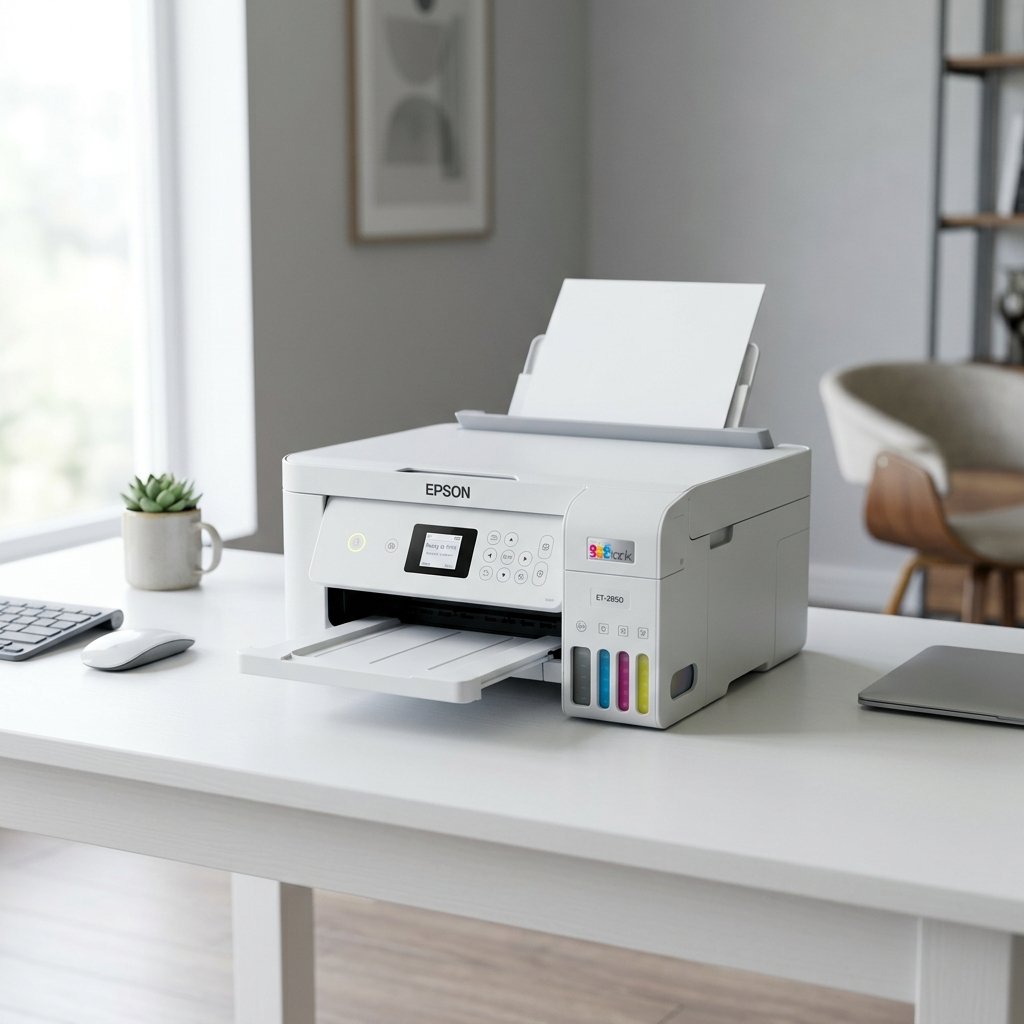
Epson Printer Setup
MODEL → STEPS → TEST
Your Setup Flow

What you'll do next

Use the guided steps to finish setup on any device you print from. Most issues come from mismatched packages or connection settings — this flow helps you avoid that.

Want a quick pointer? Contact Support →

01
Enter model

Use the label on the device (letters + numbers).

02
Follow the flow

Download → install → connect → confirm status.

03
Run a quick test

Print or scan test to verify everything works.

All Epson Series

Choose your Epson series

Select the series below to view the exact setup steps for your model.

EcoTank

L3110, L3150, L5190

Setup →
WorkForce

WF-2850, WF-3820

Setup →
Expression

ET, Home, Photo

Setup →
SureColor

SC, F, P Series

Setup →
ET Pro

ET-5850, ET-16650

Setup →
XP Series

XP-4100, XP-7100

Setup →
EcoTank Series

Epson Printer Setup Guide

Follow these steps carefully. Complete each step before moving to the next one.

NEXT STEP MODEL-AWARE CLEAR CHECKLIST

Not sure what
to try next?

Send your model and a short note. We'll route you to the right next action without repeating the basics.

Step order that makes sense
Minimal details requested
Faster routing to the right fix
Epson Help

Common Epson Printer Questions

Answers to the most common problems Epson users face during setup.

Visit epson.com/Support, enter your printer model number in the search box, select your OS, and download the full driver & software package. Always use the official site to avoid outdated or unsafe drivers.

On the printer's control panel, press the Home button, go to Wi-Fi Setup → Wi-Fi Setup Wizard, select your network, and enter your password. Alternatively, use the WPS Push Button method: press the Wi-Fi button on the printer, then press WPS on your router within 2 minutes. The Wi-Fi light will turn solid when connected.

Go to Settings → Devices → Printers & Scanners on Windows. Right-click your Epson printer, select "See what's printing", then click Printer → uncheck "Use Printer Offline". Also verify the Wi-Fi connection on the printer panel — the Wi-Fi light should be solid, not blinking.

Epson Connect (including Epson Email Print and Remote Print) allows you to print from anywhere via email or the cloud. It's optional — you don't need it for basic printing. For home setup, installing the Epson Software Updater and the full driver package is sufficient. Epson Connect is only needed if you want mobile or remote printing features.

The model number is printed on a label on the front or bottom of the printer (e.g., EcoTank L3110, WorkForce WF-2850). You can also find it by pressing Setup → Printer Information on the control panel, or by printing a status sheet from the printer's settings menu.
Printer Setup
🔧 Fix Guide 🖨️ Brands
HP Printer Setup Canon Printer Setup Epson Printer Setup Brother Printer Setup
📧 Get Support