MODEL-BASED STEPS WI-FI / USB QUICK CHECKS

Find the right setup
for your HP printer

Enter your model name to get a clean, step-by-step setup flow — downloads, connectivity, and quick checks in the right order.

🔍 Enter your HP model to get started

Common: Envy • OfficeJet • LaserJet • DeskJet • Smart Tank
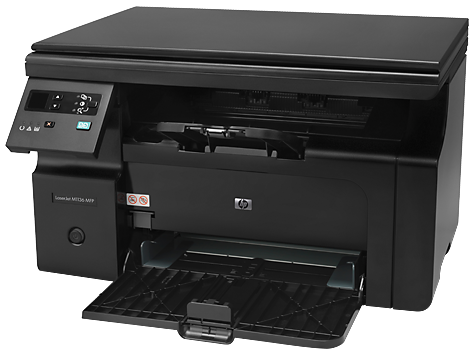
HP Printer Setup
MODEL → STEPS → TEST
Your Setup Flow

What you'll do next

Use the guided steps to finish setup on any device you print from. Most issues come from mismatched packages or connection settings — this flow helps you avoid that.

Want a quick pointer? Contact Support →

01
Enter model

Use the label on the device (letters + numbers).

02
Follow the flow

Download → install → connect → confirm status.

03
Run a quick test

Print or scan test to verify everything works.

All HP Series

Choose your HP series

Select the series below to view the exact setup steps for your model.

LaserJet

Pro, Enterprise, M Series

Setup →
DeskJet

2700, 3700, 4100

Setup →
Envy

6000, 7000 Series

Setup →
OfficeJet

Pro 8000, 9000

Setup →
Smart Tank

500, 6000, 7000

Setup →
Tango

X, Tango Series

Setup →
LaserJet Series

HP Printer Setup Guide

Follow these steps carefully. Complete each step before moving to the next one.

NEXT STEP MODEL-AWARE CLEAR CHECKLIST

Not sure what
to try next?

Send your model and a short note. We'll route you to the right next action without repeating the basics.

Step order that makes sense
Minimal details requested
Faster routing to the right fix
HP Help

Common HP Printer Questions

Answers to the most common problems HP users face during setup.

Visit support.hp.com/drivers, enter your model number, select your OS, and download the "Full Feature Software and Driver" package. Avoid third-party driver sites.

On the printer's control panel, go to Settings → Wireless Setup Wizard. Select your Wi-Fi network, enter the password, and wait for the confirmation. Then install drivers on your computer using the "Wireless" connection option.

This usually means the printer lost its network connection or the "Use Printer Offline" option is enabled. Go to Settings → Devices → Printers, right-click your HP printer, check "See what's printing", and uncheck "Use Printer Offline" if enabled.

For most home printers (DeskJet, Envy, OfficeJet), the HP Smart app is the recommended route — it handles drivers, Wi-Fi setup, and scan features in one install. For enterprise LaserJet models, the full manual driver package from HP's site gives more control.

The model number is on a label on the bottom or back of the printer. It starts with letters and numbers (e.g., M479fdw, 6055e). You can also find it by printing a configuration page from the printer's settings menu.
Printer Setup
🔧 Fix Guide 🖨️ Brands
HP Printer Setup Canon Printer Setup Epson Printer Setup Brother Printer Setup
📧 Get Support